mirror of
https://github.com/TeachBooks/template.git
synced 2026-11-12 22:25:52 +00:00
Use this template to quickly start with your own interactive textbook that includes our "standard" selection of features and workflow to host your book on ....github.io/...
https://teachbooks.github.io/template/
| .github/workflows | ||
| book | ||
| figures | ||
| .gitignore | ||
| LICENSE.md | ||
| README.md | ||
| requirements.txt | ||

Your first TeachBook using the GitHub template
The template allows you to start your own Jupyter Book and hosting that book online without knowledge on Git, the Jupyter book package, python or anaconda. It doesn't elaborate on the collaborative functionalities of Git or how to edit the book.
- To get started making your Jupyter Book with our functionalities, use the template book as template:
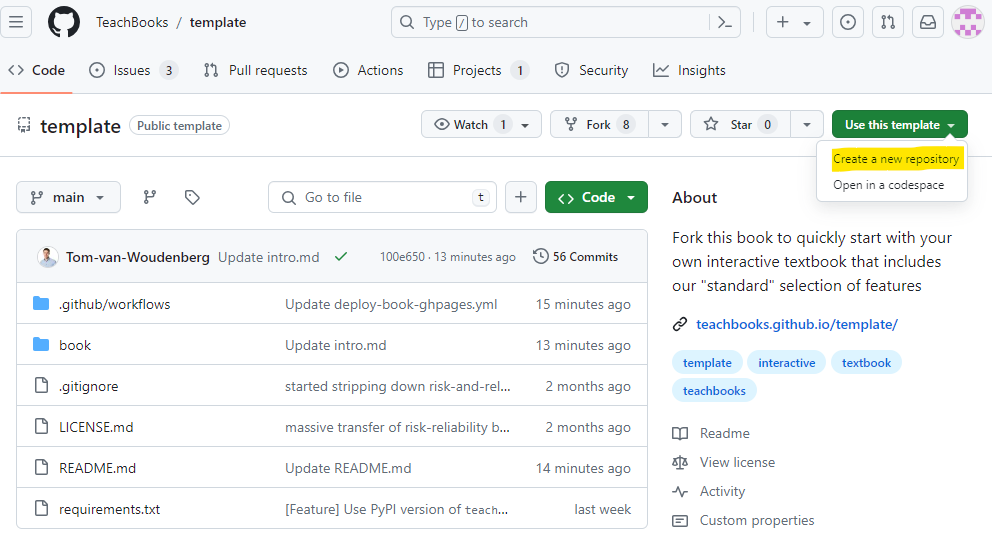
- Fill in a repository name, this name will be used in the future url of your book:
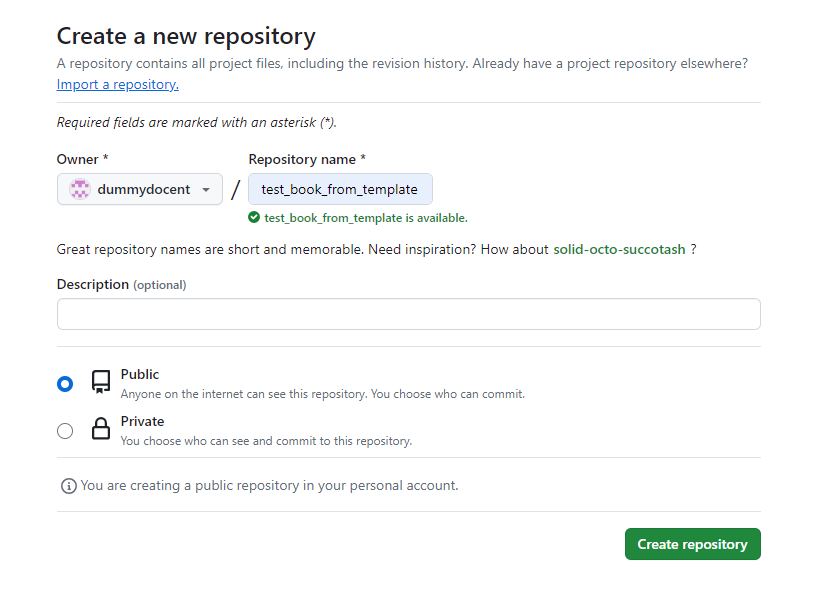
- Set source for GitHub pages to under
Settings-Pages-Build and deployment-Source-GitHub Actions:
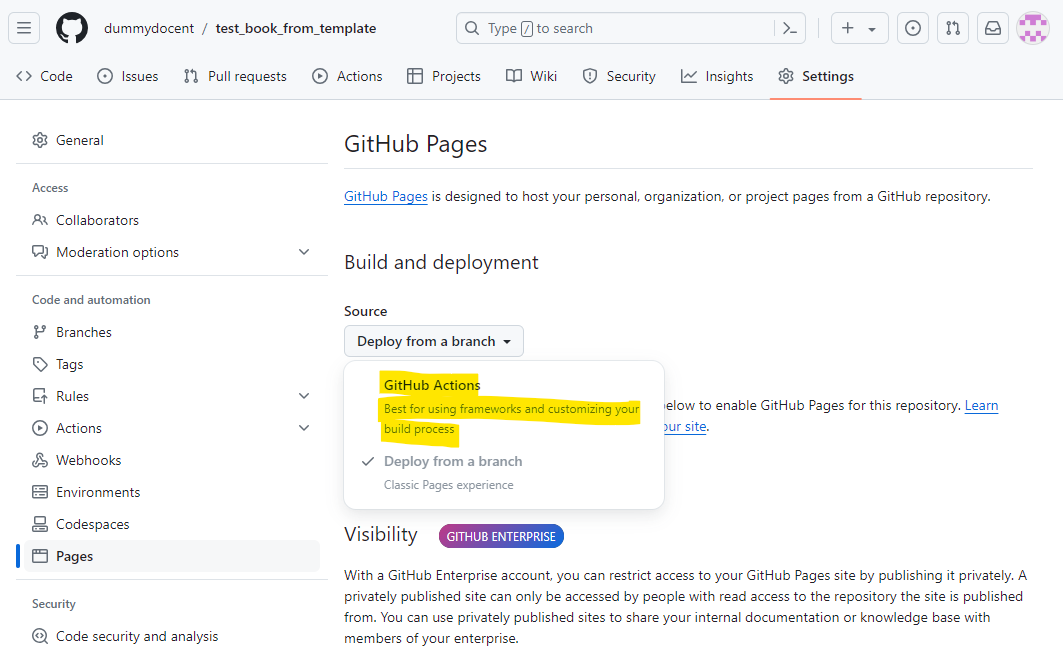
- Set repository website as your GitHub Pages website under
Code-About- -Website-Use your GitHub Pages Website
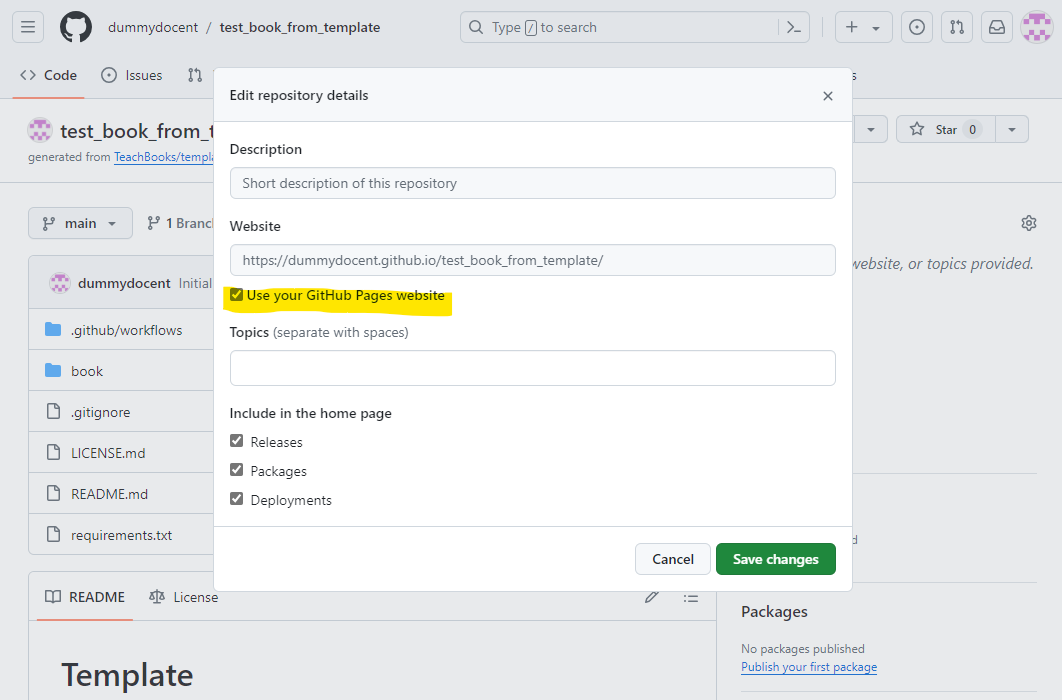
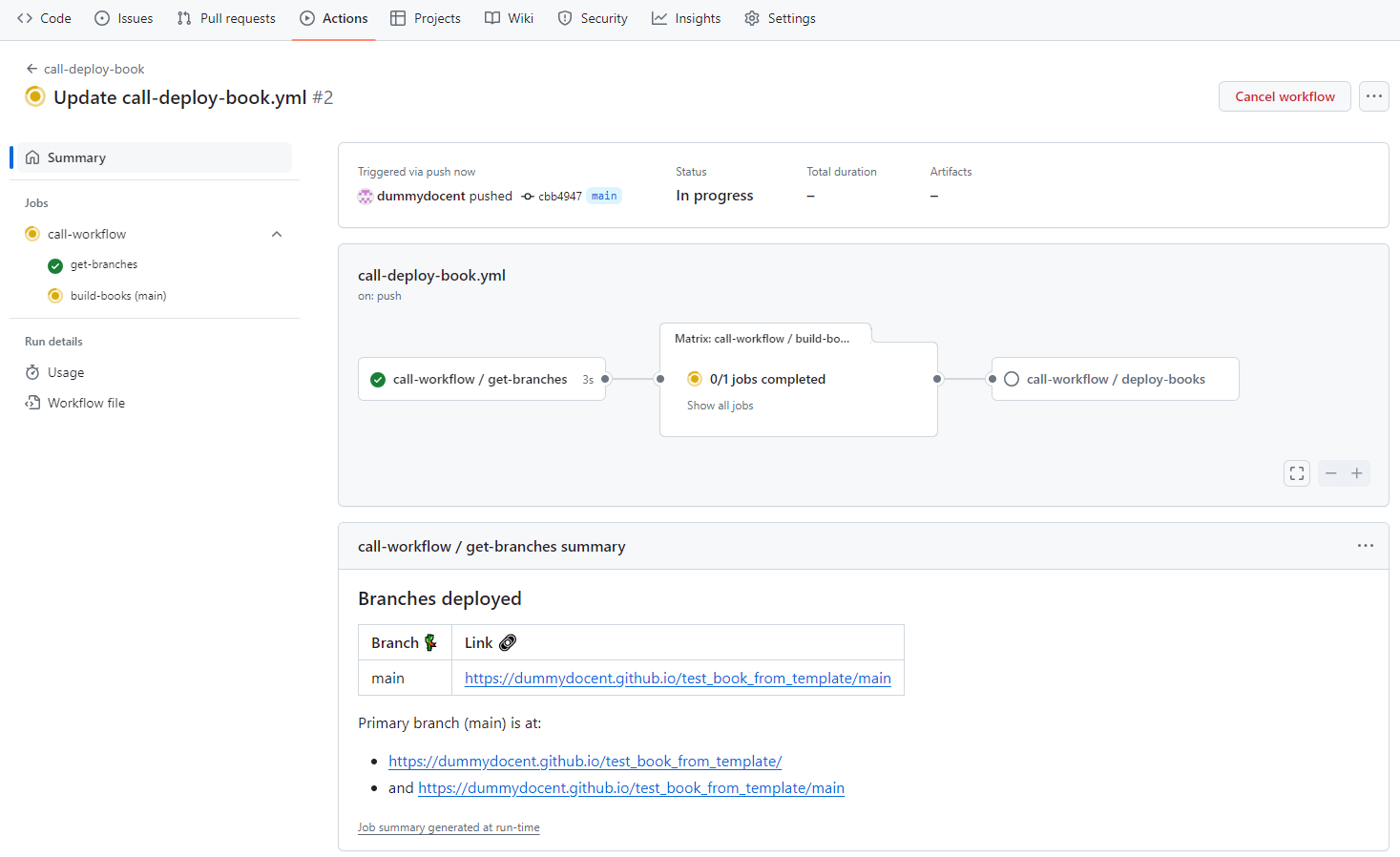
- Wait a few minutes for the website to be deployed, if you're curious, have a look at the progress under
Actions-All workflows-call-deploy-book-specific workflow run:
- When the workflow has finished, visit your build book at
https://<username or organiszation_name>.github.io/<repository_name>(case sensitive). For our example it is https://dummydocent.github.io/test_book_from_template/ for the shown repository. These links are visible in the action as well, as shown in the figure above or in the GitHub repository website which you set in step 3.