# Collaboration
As previously mentioned there are multiple platforms that can host Git repositories. Here we will elaborate on two: GitLab and GitHub.
## Staging, committing and pushing
A jupyter book is composed out of many markdown files which contain the educational content produced by you. Through the use of branches it is possible to work on the book at the same time as your team-members. Working on content for the book is mainly individual work, the beauty of git comes in when everybody's changes are merged into the main branch. Find out for about staging committing and pushing [here](/book/installation-and-setup/git-stage-commit-push.md).
## Repositeries, Branching and Merging
We have previously introduced the notions of local and remote repositories, [branching](/book/installation-and-setup/git-branch.md). and finally [merging branches](/book/installation-and-setup/git-merge.md).
All the (markdown) files that make up the book are contained on the remote repository on GitLab or GitHub. This could be on an open repository on `gitlab.com` or `github.com`. In the context of creating educational books for students at TU Delft, the repository will most likely be located on `gitlab.tudelft.nl`.
The main branch is the default branch. The content on this branch will be the most up to date version of the book. Therefore, new branches, which are made to add or fix some content in the book, are usually cloned from the main branch. This has many advantages compared to making the edits immediately in the main branch.
- The different branches help to keep an overview of the changes made to the book.
- Branching allows multiple people to make changes to the book at the same time.
- In case those changes made in parallel lead to conflicts, they can be resolved during the merging of the branches.
This systematic workflow guarantees that editing the book goes smoothly.
Merging a branch into the main branch is a also good moment to let a team-member review the content. This is done in the merge-request. By assigning a colleague to review your branch you can check the quality of your new content.
```{note}
There is a slight difference in terminology between GitLab and GitHub. GitLab uses the term *Merge* Request while GitHub uses the term *Pull* Request. Both actions refer to the merging of a branch into the main branch.
```
## Access Control / Permissions
## Milestones & Issues
In a repository, team members can define Milestones and Issues. Milestones are used to track the overall progress of the project to make sure that deadlines are met. A milestone can group many issues, which are individual tasks that need to be finished in order to reach the milestone. Every team member can create issues when they think of a task that would improve the book like for example:

You can create an issue by clicking on the blue `New Issue` button in the top right corner.
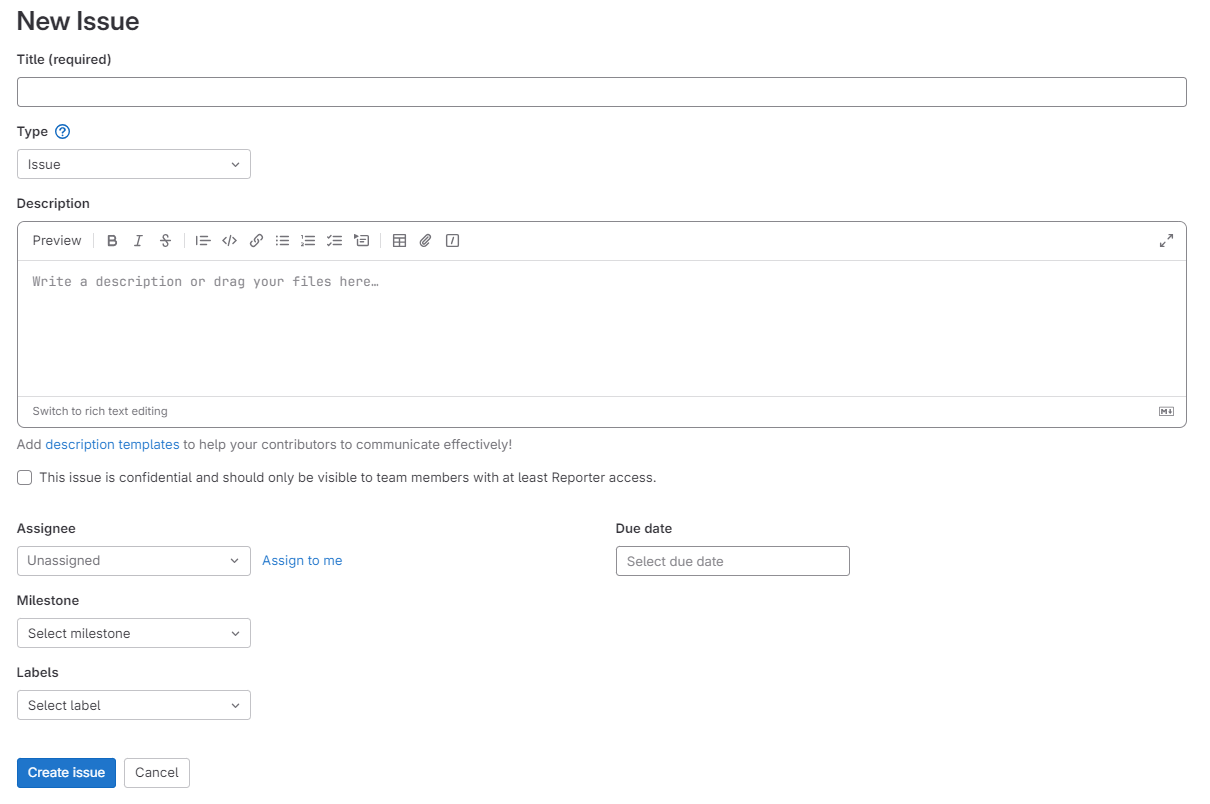
An issue is built up of the following attributes:
- the title, this should just be a quick description of the task
- a label, to assign a category to the task such as: new content
- an assignee, the person who created the task can assign a team-member to the task or the task can remain without an assignee. Then whoever would like to pick up the task can assign it to themselves!
- a discussion section, here team-members can discuss any questions about the task
- a due date, in case the task is urgent or to keep track of deadlines
When the task is completed, the issue can be closed and you can move on to the next!
## Publishing the website
Once the book is ready to be published, a static website can be created through GitLab pages. (Need more info on that/Are we using gitlab pages?)
## GitHub
The workflow described above is largely the same on both platforms since both platforms stick to the names of the git functionalities. So alternatively to GitLab. Github and Github pages ca also be used to publish your book.